How To Unlock Idea NetSetter 3G – Huawei E1550
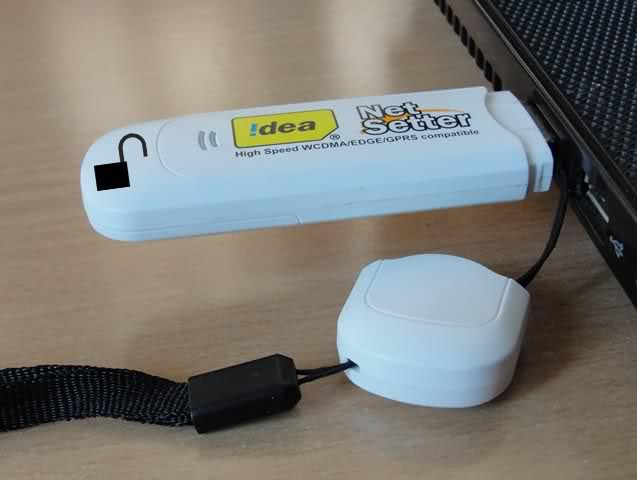
Idea NetSetter is a 3G HSDPA USB Device with the model number as Huawei E1550. The device has the maximum speed of 3.6 Mbps which means 330 KB/Sec of download speed. Key features of this device includes -
- Size: 71.5×26×11mm
- HSUPA/HSDPA/UMTS 2100MHz ·
- EDGE/GPRS/GSM 850/900/1800/1900MHz; ·
- HSDPA 3.6M ·
- Data / SMS / USSD support ·
- Invoke browser option ·
- Rx Diversity (Optional) ·
- Improved design ·
- Compatible with Windows 2000/XP/Vista/7, Mac, and Linux OS (limited versions) ·
- Micro SD Card Slot
Idea Netsetter 3G is sold for a price of 1600 INR in Andhra Pradesh and Maharashtra while it is sold for 1999 in rest of India. A brand new idea device is locked to the first Idea Sim Card that is inserted in the device. Earlier, Idea devices used to be locked to the Idea network but now they are have locked to a sim card which means you cannot use the device even with a different mobile sim card from the same network which is lame. Idea may try to give a rational explanation for the same but it somehow makes no sense, it is a desperate try to sell more devices and prevent customer from sharing it.
Pre-requisites before unlocking
The process to unlock the device is fairly simple and has no rocket science involved. You just have to run the setup file of just 3 software packages and you are done. Additionally, you may need to have an idea sim card with you with its PUK code. To know the PUK code, you can call the Idea customer care. Alternatively, You can also SMS the first 19 digits of the sim s/n to 55303 from the same idea number. The SMS format is -
PUK <First 19 digits of s/n found behind the sim card>
Send this SMS to 55303 and within minutes you will receive your PUK code as a SMS. However, in most cases, you may not require this and just knowing the HUAWEI E1550 Unlock Code may suffice.
Step 1
Insert your Idea NetSetter 3G device (with the original Idea sim card it came bundled with) in the USB port of your computer and install the Idea NetSetter software. This is to ensure that all the necessary device drivers are installed. You can skip this step if you already have the software installed.
Step 2
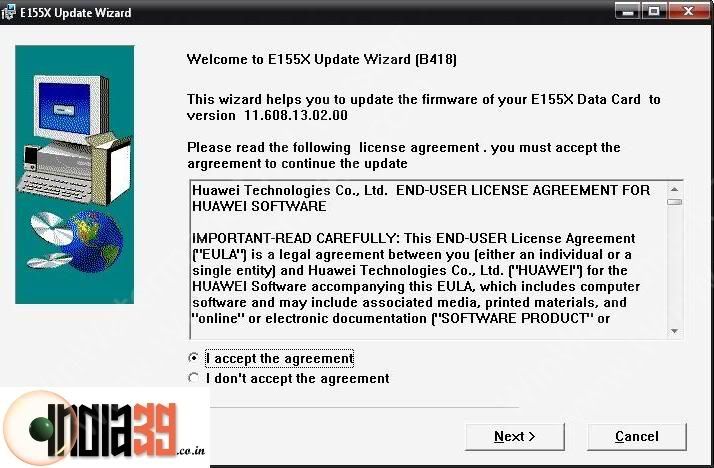
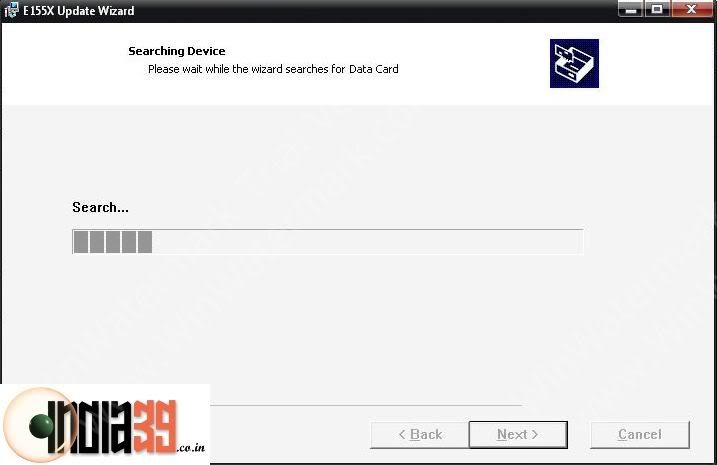
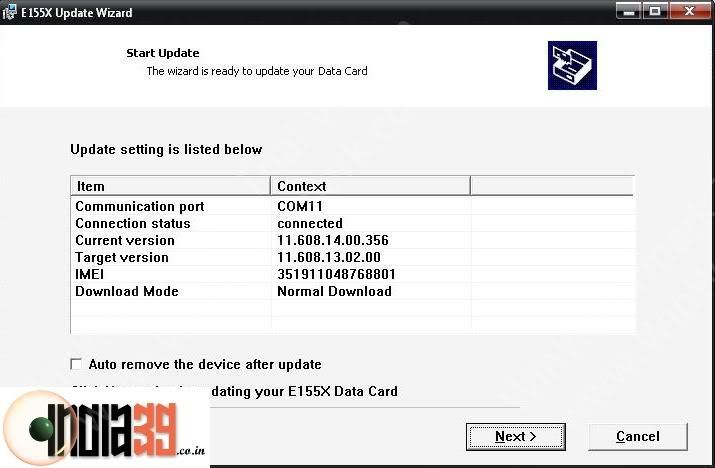
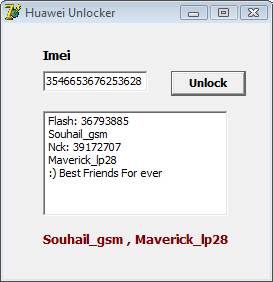
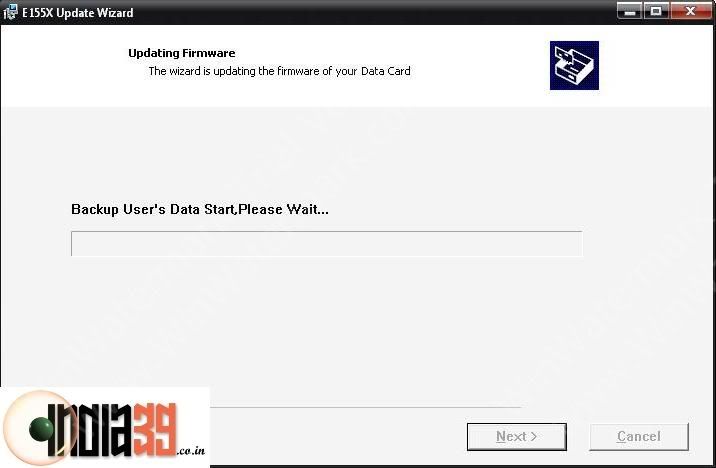
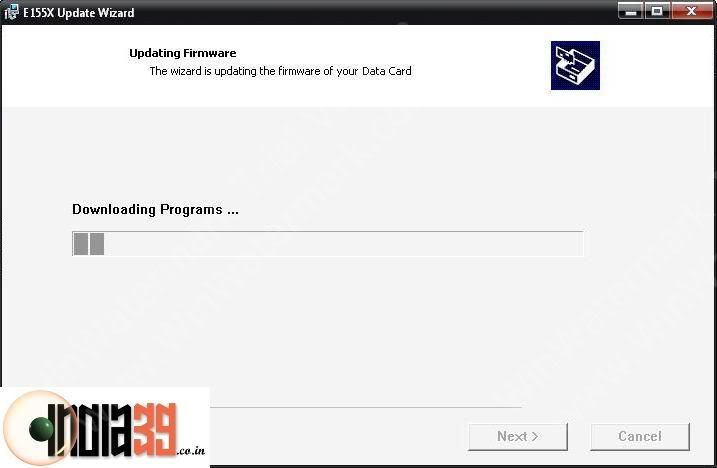
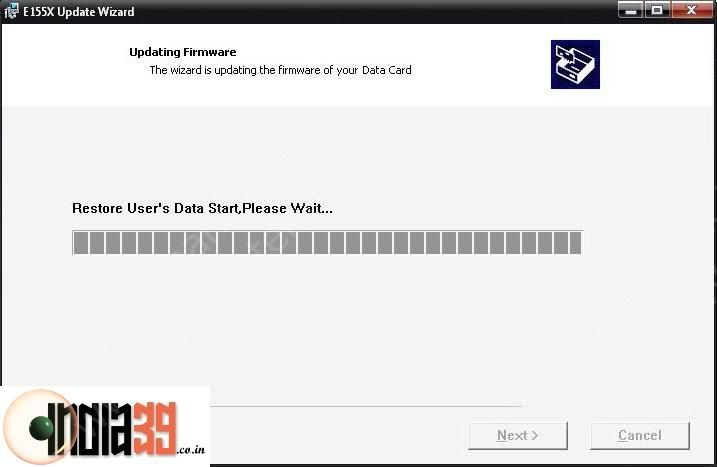
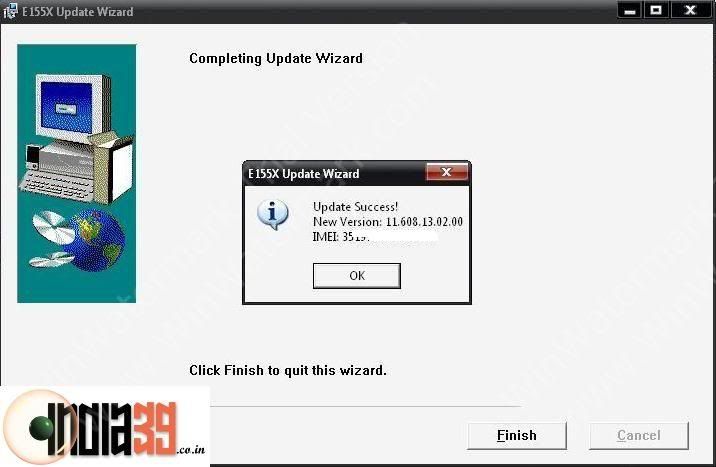
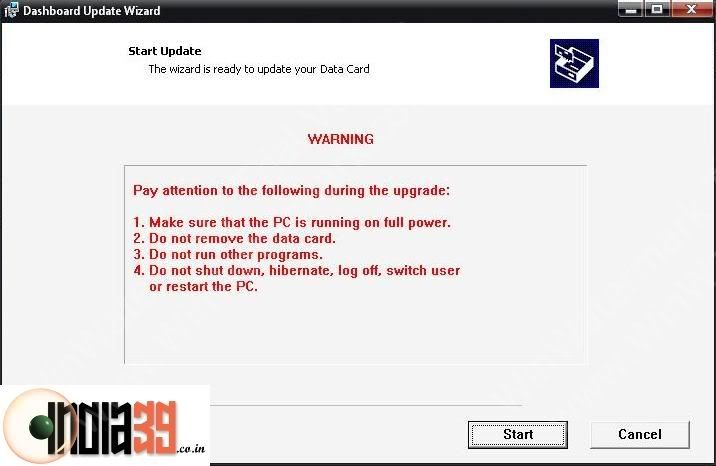
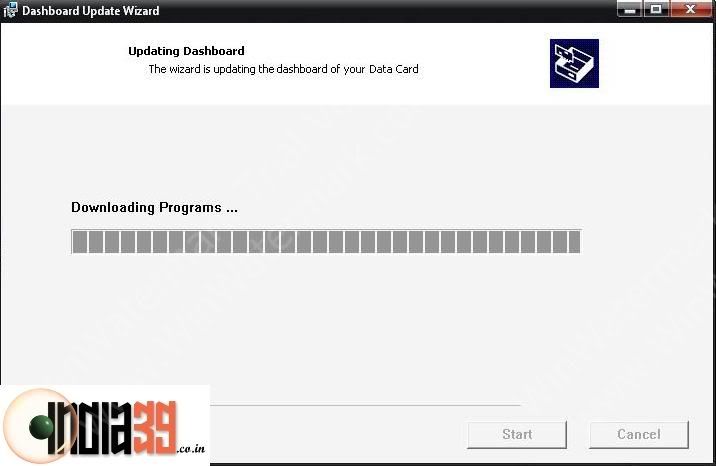
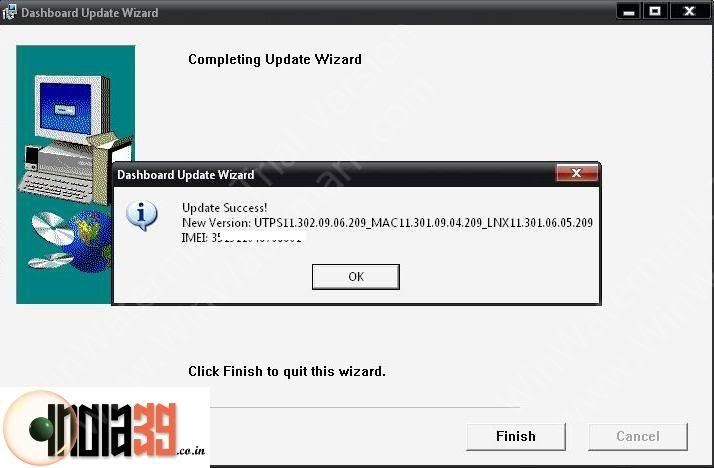
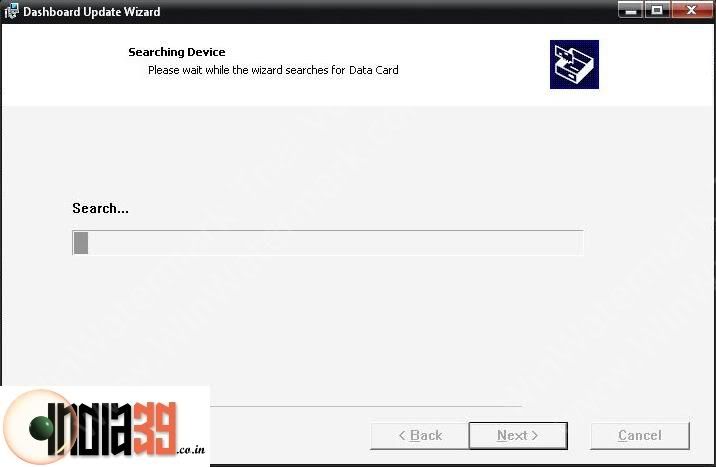
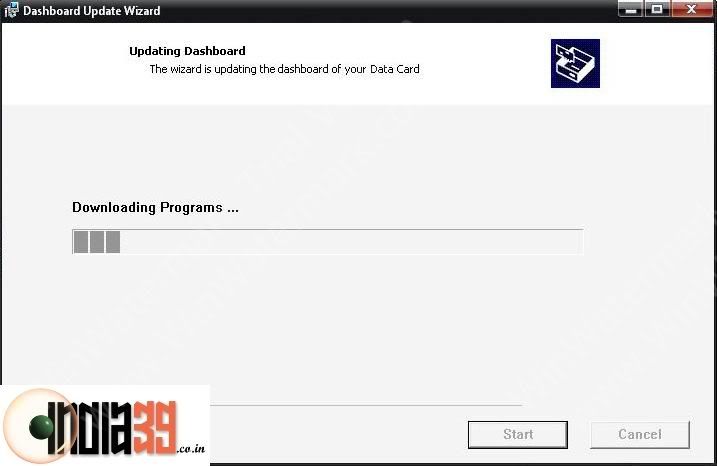
Run the setup file of the E155XUpdate_11.608.13.02.00.B418 Software and follow the on-screen instructions. If the device is not found by the application, make sure to exit the Idea Software or any other application that may be using the Idea USB device and try again. You will require the flash code for continuing with the process. Use the Huawei Unlocker software and key in the IMEI number of the Idea Netsetter (Remove the sim card to see the IMEI number). The application will generate two numbers Flash and Nck. Flash code is the one that you will need in this step. Also, note down the Nck code, you might require this in the last step.
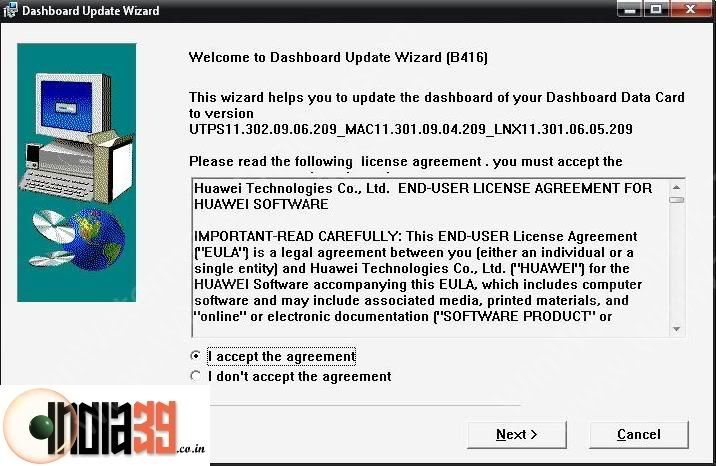
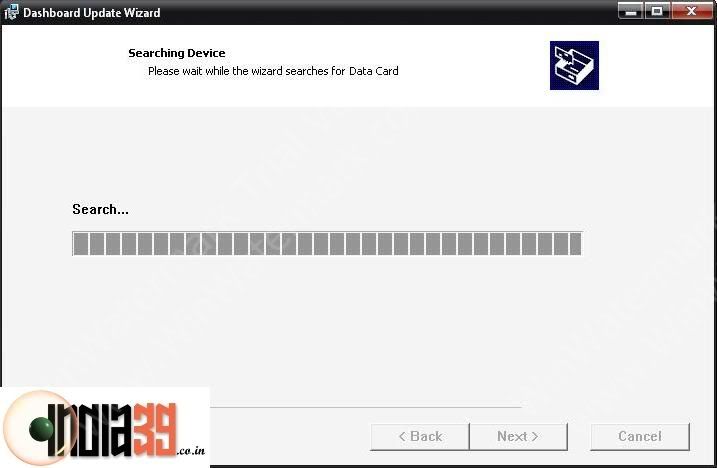
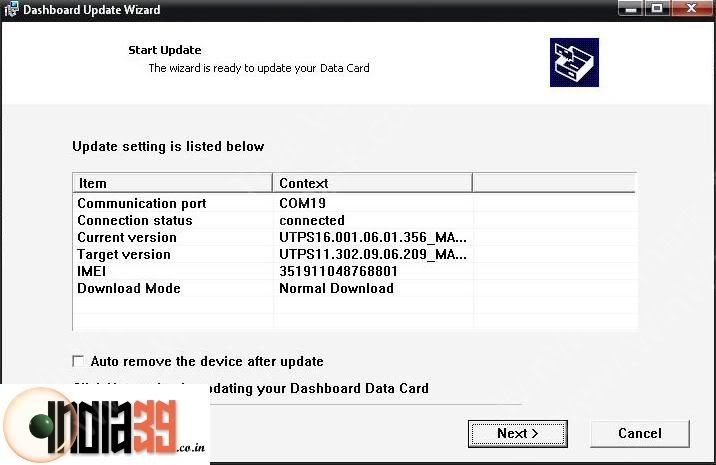
This is where you might have to enter the flash code and the steps proceed as shown in screens if you enter a correct flash code.
Huawei E1550 Unlocker - Note the flash code and the unlock code
Step 3
Now, you are one step closer to unlocking of the NetSetter device. Start the setup file of HUAWEI_UTPS11.302.09.06.209 software and follow the on-screen instructions. Again, ensure that the 3G device is not being used by any other software so that the application could find it easily.
Step 4
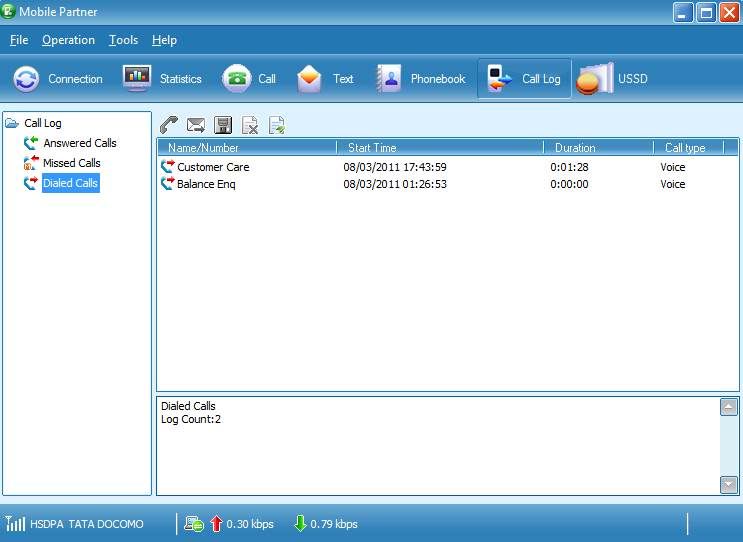
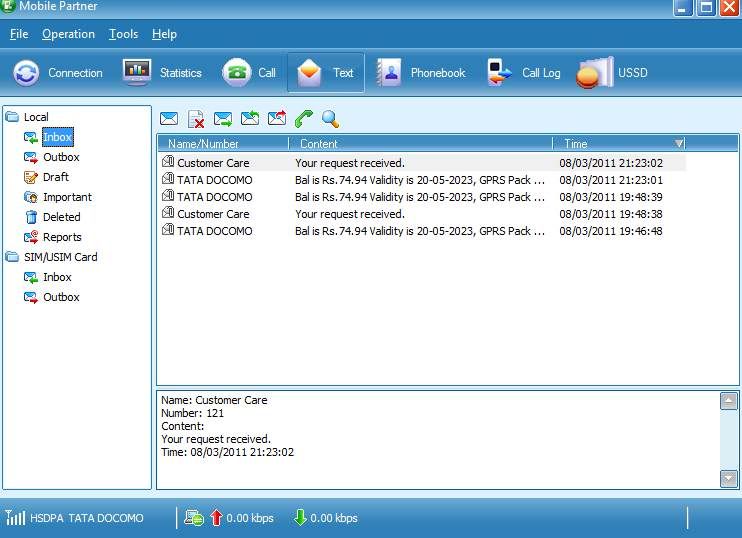
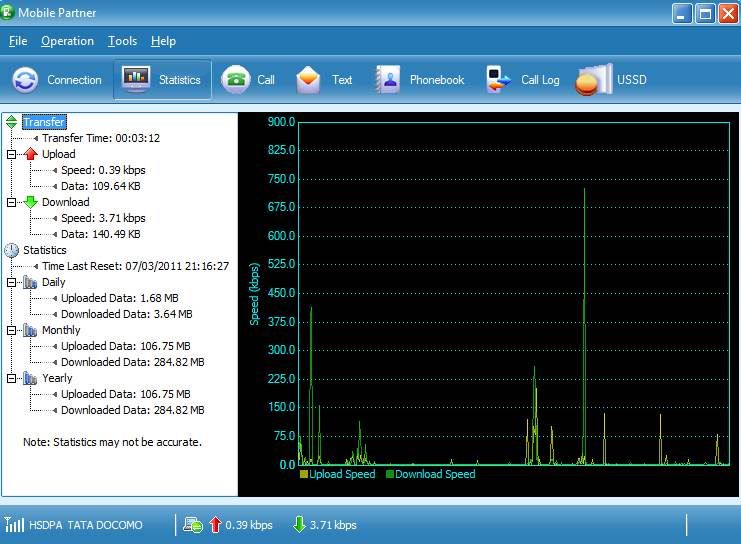
This step involves installing the Huawei Original Unbranded Mobile Partner software on your computer to manage the 3G device. It is the same software that comes with NetSetter but it is just that it is unbranded and has no logo for any telecom company. But it is recommended to install to complete the unlocking procedure. It is like a normal software installation and does not require any specific guidelines.
Step 5
This is the most important and the final step. I hope you have the PUK code for the Idea Sim Card handy. The Idea Sim Card required in this step can be any Idea sim card (original bundled or a new one) but the PUK code should belong to the one you intend to insert in the 3G device.
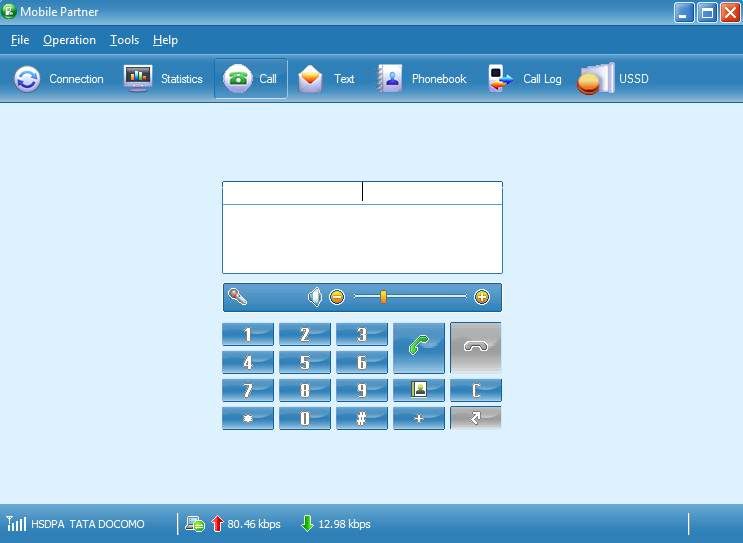
Remove the 3G device from the computer and re-insert. Launch the Mobile Partner software, it will immediately ask for a password (saying you have 3 chances). Try to enter the PUK code correctly. After two chances if you are unable to succeed, do not try the 3rd time, simply take out the 3G device from the USB port without closing the software. You should notice that the password window is not visible now. Close Mobile Partner.
Re-insert the Idea NetSetter, launch the Mobile Partner and notice that the application now asks for a password allowing 10 retry attempts. You now need to provide the Huawei Unlock Code (Nck Code) which you got from the Huawei Unlocker software. Once you key in the correct code, the 3G Netsetter is unlocked and you are good to go. You can now use any sim card from any mobile network.
Conclusion
The successful completion of the 5th step unlocks the Idea NetSetter 3G and allows you to use the device with any damn 3G network in the world. One of the changes that you might see after the completion of the process is the presence of a different software on the 3G device instead of Idea Branded Software. The new software is the Huawei Megafone Software and can be used without any issues. Just plug the device in to any computer and install the bundled software in the 3G device.
Another useful aspect of this unlocking procedure is that after the unlock, you can use the device for making voice calls right from your computer using the computer’s mic and speakers.
Download Links
Mobile Partner (11.12 MB)
Huawei Unlocker (192.88 KB)
E155XUpdate_11.608.13.02.00.B418 (14.31 MB)
HUAWEI_UTPS11.302.09.06.209 (17.64 MB)
comment pls